High Quality Print

Low Prices

Free Delivery (UK Mainland)*

Friendly Team of Experts

5 Star Rated By Customers

Order Online Anytime 24*7
AI design tools make it simple to generate eye-catching graphics in minutes, and we’re seeing more and more of them submitted for board printing. The results are mixed: a file that looks perfect on a laptop can come back from print blurry, dull or distorted once it’s reproduced at full board size.
The reason is straightforward — screens and print are two different mediums. This checklist walks you through exactly what “print-ready” means for printed boards, the most common problems we see, and how to fix them before your order goes to press.
In every case, we strongly recommend using a professional graphic designer to create your artwork to guarantee the best possible print quality.
To be print-ready, your file needs to meet a few technical requirements:
Most AI tools don’t output these settings by default, because they’re built for screens — not print.
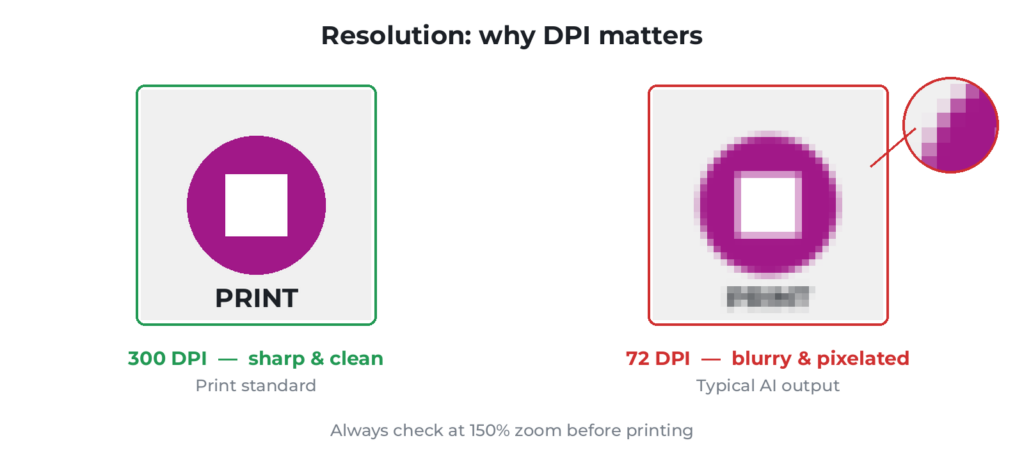
Low resolution means blurry prints. A large printed boards job, for example, might need 12,000+ pixels of width, yet many AI images are generated far smaller than that.
Tip: Always check your image at 150% zoom before printing. If it looks soft or blurry on screen, it will almost certainly print that way too.
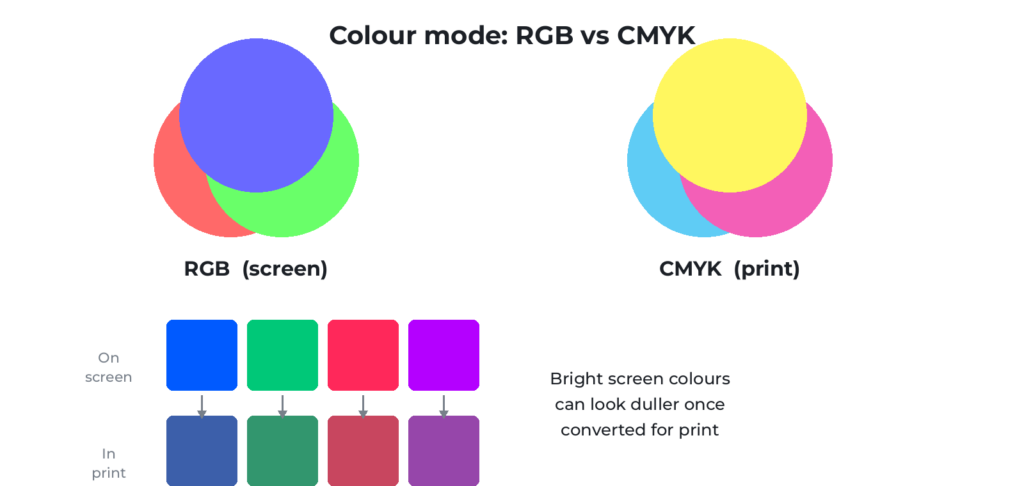
Screens use RGB. Professional printers use CMYK. When your design converts from one to the other:
Tip: Always preview your design in CMYK before printing so there are no surprises.
AI tools usually export JPG or PNG. For printing, better formats are:
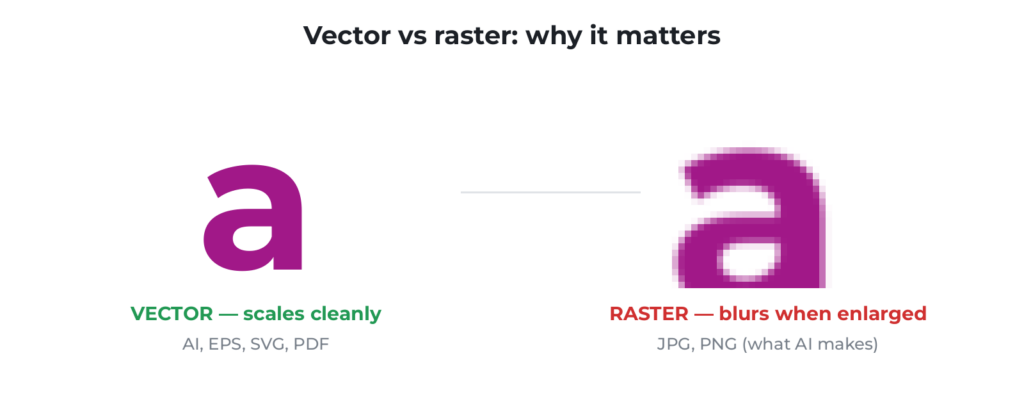
Why it matters: JPGs can lose quality through compression, and AI does not create true vector files. Vector artwork scales to any size without losing quality; raster (pixel) artwork blurs when enlarged.
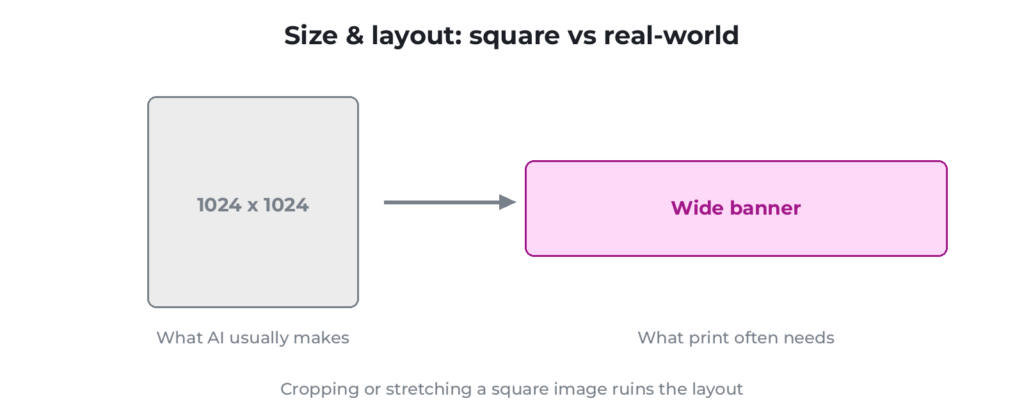
AI often creates square images (e.g. 1024×1024). Print designs, however, need specific shapes — wide printed boards, portrait posters, set flyer sizes, and so on. Cropping or stretching a square image to fit usually ruins the layout.
Tip: Design with your final size in mind from the very start.
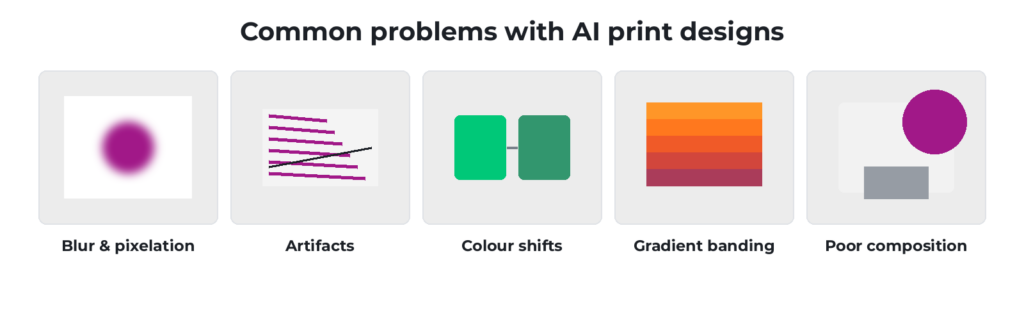
Here’s what typically goes wrong:
Follow this simple workflow:
*Please note: we have no affiliation with the tools listed above and accept no liability should you choose to use or pay for these services.
For printed boards, AI works best on backgrounds, illustrations and large graphics. Logos, fine text and brand-critical detail should always be added or replaced manually.
Great for:
Not ideal for:
If it needs to be perfect, don’t rely on AI alone. AI-generated text often contains errors or distortions, so always replace it manually.
Below are high-quality, ready-to-use prompts to help AI generate print-friendly artwork from the start. They’re designed to reduce common issues like low resolution, poor composition and colour problems. Edit each one to suit the item you’d like to print.
“Create a high-resolution print-ready design for a [type of product: banner/poster/flyer].”
Specifications:
Leave safe margins (no important elements near edges)
Design details:[describe subject, branding, message clearly]
Avoid:
– Blurry details
– Distorted text
– Artifacts or visual errors
“Create a large-format banner design for [business/event].”
Specifications:
Include:
Avoid:
“Design a professional poster for [event/product].”
Specifications:
Include:
Style: [premium / modern / minimal / bold]
Avoid:
“Create a clean, professional flyer background for [business/service].”
Specifications:
Design requirements:
Avoid:
If you’re unsure whether your design is ready to print:
It can save you time, money and the cost of reprints. Get in touch with the Board Printing Company team to get started.
A digital and print specialist with over decades of experience ranging from design to production, Nimesh is committed to quality and working with clients to add value to their businesses. His technical knowledge of print machinery operation is matched only by his love of the print industry.

 020 8902 9298
 Quick Quote
 020 8902 9298
  Quick Quote
  Login / Signup